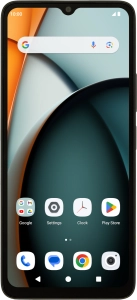
Xiaomi Redmi A3 - Back up pictures and videos to Google Drive | Vodafone Ireland
Xiaomi Redmi A3

Xiaomi Redmi A3

Android 14

Back up pictures and videos on your Xiaomi Redmi A3 Android 14 to Google Drive

Read help info

You can back up pictures and videos to Google Drive to ensure that no data is lost when you update your phone's software or if you lose your phone. To back up your pictures and videos, you need to activate your Google account on your phone and set up your phone for internet.

Slide your finger upwards on the screen.
Step 1 of 12

1. Find "Photos"

Slide your finger upwards on the screen.

Press Photos and go to the required folder.
Step 2 of 12

1. Find "Photos"

Press Photos and go to the required folder.

Press and hold any picture or video.
Step 3 of 12

2. Select pictures or videos

Press and hold any picture or video.

Press the required pictures or videos to select them.
Step 4 of 12

2. Select pictures or videos

Press the required pictures or videos to select them.

Press the share icon.
Step 5 of 12

2. Select pictures or videos

Press the share icon.

Press More.
Step 6 of 12

2. Select pictures or videos

Press More.

Press Drive.
Step 7 of 12

2. Select pictures or videos

Press Drive.

Press the field below
Step 8 of 12

3. Select location

Press the field below "Location" and go to the required folder.

To create a new folder, press the new folder icon and follow the instructions on the screen to create a new folder.
Step 9 of 12

3. Select location

To create a new folder, press the new folder icon and follow the instructions on the screen to create a new folder.

Press Select.
Step 10 of 12

3. Select location

Press Select.

Press Save.
Step 11 of 12

4. Back up pictures and videos

Press Save.

Press the Home key to return to the home screen.
Step 12 of 12

5. Return to the home screen

Press the Home key to return to the home screen.

1. Find "Photos"

Slide your finger upwards on the screen.
Press Photos and go to the required folder.

2. Select pictures or videos

Press and hold any picture or video.
Press the required pictures or videos to select them.
Press the share icon.
Press More.
Press Drive.

3. Select location

Press the field below "Location" and go to the required folder.
To create a new folder, press the new folder icon and follow the instructions on the screen to create a new folder.
Press Select.

4. Back up pictures and videos

Press Save.

5. Return to the home screen

Press the Home key to return to the home screen.

Get information on...

Or select...

Another device
4g accessories icon-app-store basket-change battery-life battery bill-pay-phones-icon 4C91DB73-75FE-4565-8F69-BC6C675B1EA1 bin block Brands broadband-icon broadband calendar call camera cases Chat chevron-down chevron-left chevron-right chevron-up close close collections€€ community continuous contract dashboard data download-square Download edit error-circle eye facebook filters folder go identity Less letters location Memory menu message mobile my-vodafone network_signal operating-system orders payg-phones-icon F86C85F6-FFFF-4C62-8F9A-45D7251FC836 payment photos play-store play plus rating report return roaming screen-size search secure-net shopping sim spinner squares technology tick-simple top-up top-up TV twitter value vf-tv-icon vodafone warning Weight world
Close dialog
Skip to content

Login to My Vodafone

Close dialog
Skip to content

Register with My Vodafone