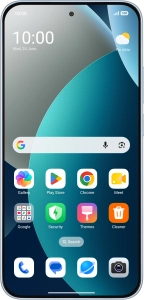
Xiaomi Redmi Note 15 Pro 5G - Turn use of phone lock code on or off | Vodafone Ireland
Xiaomi Redmi Note 15 Pro 5G

Xiaomi Redmi Note 15 Pro 5G

Android 16

Turn use of phone lock code on your Xiaomi Redmi Note 15 Pro 5G Android 16 on or off

Read help info

The phone lock code prevents others from accessing the contents of your phone (such as pictures and messages). When the phone lock code is turned on, it needs to be used every time you turn on your phone and when it has been in sleep mode.

Press Settings.
Step 1 of 12

1. Find "Fingerprint unlock"

Press Settings.

Press Fingerprints, face data, and screen lock.
Step 2 of 12

1. Find "Fingerprint unlock"

Press Fingerprints, face data, and screen lock.

Press Fingerprint unlock.
Step 3 of 12

1. Find "Fingerprint unlock"

Press Fingerprint unlock.

Press the required phone lock code and follow the instructions on the screen to create an additional phone lock code.
Step 4 of 12

2. Create phone lock code using a fingerprint

Press the required phone lock code and follow the instructions on the screen to create an additional phone lock code.

Follow the instructions on the screen to create the phone lock code using your fingerprint.
Step 5 of 12

2. Create phone lock code using a fingerprint

Follow the instructions on the screen to create the phone lock code using your fingerprint.

Press Done.
Step 6 of 12

2. Create phone lock code using a fingerprint

Press Done.

Press the required settings to turn them on or off.
Step 7 of 12

2. Create phone lock code using a fingerprint

Press the required settings to turn them on or off.

Press arrow left.
Step 8 of 12

2. Create phone lock code using a fingerprint

Press arrow left.

Press Screen lock.
Step 9 of 12

3. Turn off use of phone lock code

Press Screen lock.

Press Turn off screen lock and key in the additional phone lock code you created earlier.
Step 10 of 12

3. Turn off use of phone lock code

Press Turn off screen lock and key in the additional phone lock code you created earlier.

Press OK.
Step 11 of 12

3. Turn off use of phone lock code

Press OK.

Slide your finger upwards starting from the bottom of the screen to return to the home screen.
Step 12 of 12

4. Return to the home screen

Slide your finger upwards starting from the bottom of the screen to return to the home screen.

1. Find "Fingerprint unlock"

Press Settings.
Press Fingerprints, face data, and screen lock.
Press Fingerprint unlock.

2. Create phone lock code using a fingerprint

Press the required phone lock code and follow the instructions on the screen to create an additional phone lock code.
Follow the instructions on the screen to create the phone lock code using your fingerprint.
Press Done.
Press the required settings to turn them on or off.
Press arrow left.

3. Turn off use of phone lock code

Press Screen lock.
Press Turn off screen lock and key in the additional phone lock code you created earlier.
Press OK.

4. Return to the home screen

Slide your finger upwards starting from the bottom of the screen to return to the home screen.

Get information on...

Or select...

Another device
4g accessories icon-app-store basket-change battery-life battery bill-pay-phones-icon 4C91DB73-75FE-4565-8F69-BC6C675B1EA1 bin block Brands broadband-icon broadband calendar call camera cases Chat chevron-down chevron-left chevron-right chevron-up close close collections€€ community continuous contract dashboard data download-square Download edit error-circle eye facebook filters folder go identity Less letters location Memory menu message mobile my-vodafone network_signal operating-system orders payg-phones-icon F86C85F6-FFFF-4C62-8F9A-45D7251FC836 payment photos play-store play plus rating report return roaming screen-size search secure-net shopping sim spinner squares technology tick-simple top-up top-up TV twitter value vf-tv-icon vodafone warning Weight world
Close dialog
Skip to content

Login to My Vodafone

Close dialog
Skip to content

Register with My Vodafone